7 useful features in your customer account
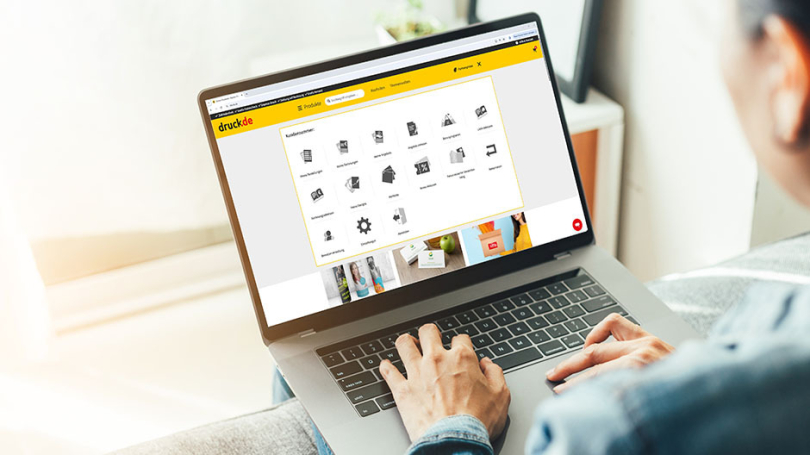
Anyone who knows us knows that we’re constantly working to improve our service. This also includes your Experiences on our website and, above all, in your customer profile. This makes it all the more important to us to provide you with many features to make available as far as possible, to make your ordering process and your shopping experience as pleasant as possible to design. It’s often not that easy to keep track of everything.
We don’t just offer you the opportunity to, Placing orders, but also Easily reorder past orders and cancel them yourself. You can also Create quotes with ease and Download invoices. To facilitate our collaboration, we’ll enable you to Adding users, editing delivery addresses and a Overview of all your orders.
In this article you’ll find an overview about the most important and The most useful features in your profile.
1 | Log in
2 | Add users
If you are placing orders with us together with other people from your organisation, we recommend that you add them as Users: your customer profile to be added. This has the following advantages:
- Users can be assigned different permissions.
- Order summaries, billing addresses and more can be viewed and used by several people.
- Overall, teamwork becomes more transparent and everyone has a better overview.
We have a tutorial and further information on this summarised for you in a blog post.
3 | Create wishlists
There are so many great products, but you’re not quite ready to add them to your basket yet? As a first step, you can save your favourites to Your personal wishlist Add to your wishlist. This works for any product marked with the little heart next to the price. You can then view and edit your wishlist at any time in your customer profile. This has the following advantages:
- You can add all products, with different configurations, to your wishlist so you can compare them later or come back to them.
- You can give the wishlist item a name, for example to assign it to a project.
- From the wishlist, you can easily return to the product you’ve already configured and add it to your basket.
- You can save products for later and refer back to them as often as you like until you delete the item from your wishlist.
If you’re interested in this feature, you’ll find A tutorial on this can be found in our blog post.
4 | Get quotes yourself
Quotes are often required for your own business, your superiors or your own customers. You don’t need to submit a request for this; you can simply request quotes yourself. Below the price display for each of our products, you’ll find the ‘Request a quote’ button. You’ll then receive the quote by email. This isn’t just efficient; it also saves time and effort. You can find detailed instructions in our tutorial.
Our product overview under ‘My offers”, where you can see all your outstanding quotes at a glance.
5 | Reorder past orders & print files
Would you like to reorder a job or reprint your print files? You can do just that with us! You can easily reorder past jobs from your order overview. This offers the following benefits:
- Your order will be copied and added to your basket unchanged.
- The product specifications and print run from the original order are retained.
- Your print files will not be carried over, so you can order new print files for your usual product. You can upload these as normal during the final step of the ordering process.
If you’re interested in ordering a different product using previous print data, we have a feature for that too. In the final step of your order, you can simply select ‘Data from a previous order’. This allows you to reuse previous print data quickly and efficiently.
A tutorial and instructions for both functions are available summarised in a blog post.
druck.de tip: You can also upload your print files up to 30 days later. This is recommended, for example, if you want to take advantage of a limited-time offer but don’t yet have your print files to hand. During the ordering process, you can select the option ‘Upload print files later’ and you will then receive an email with all the relevant information.
6 | Edit, change & split delivery addresses
We offer you plenty of options to make the delivery process as smooth as possible. You can enter delivery addresses as well as Your billing addresses Simply add, edit and customise these in your customer area. In the ‘Delivery addressesYou’ll also find ‘Shipping Cost Information’ here, which may be useful when placing your order.
You can also change your delivery address yourself, provided your order is not yet ‘in production’. You can do this very easily in your order overview. To help you with this, we have a blog post with a tutorial created for you.
Another option we offer you during the ordering process is the ability to split your order across multiple delivery addresses. For selected products, this enables your order to be dispatched quickly and efficiently. You can find out how this works best Also on our blog.
7 | Download invoices
Fancy some more helpful printing tips?
On our Printblog, you’ll find more useful tips for your printed products. Learn The 5 most common print file errors know or find out which The best paper for your project Perfect. Have a browse through our Printblog world now!